Thank you guys , i don't know how i did not think about it like this way 
sometimes taking a break will brings you hints 

Thank you guys , i don't know how i did not think about it like this way
sometimes taking a break will brings you hints
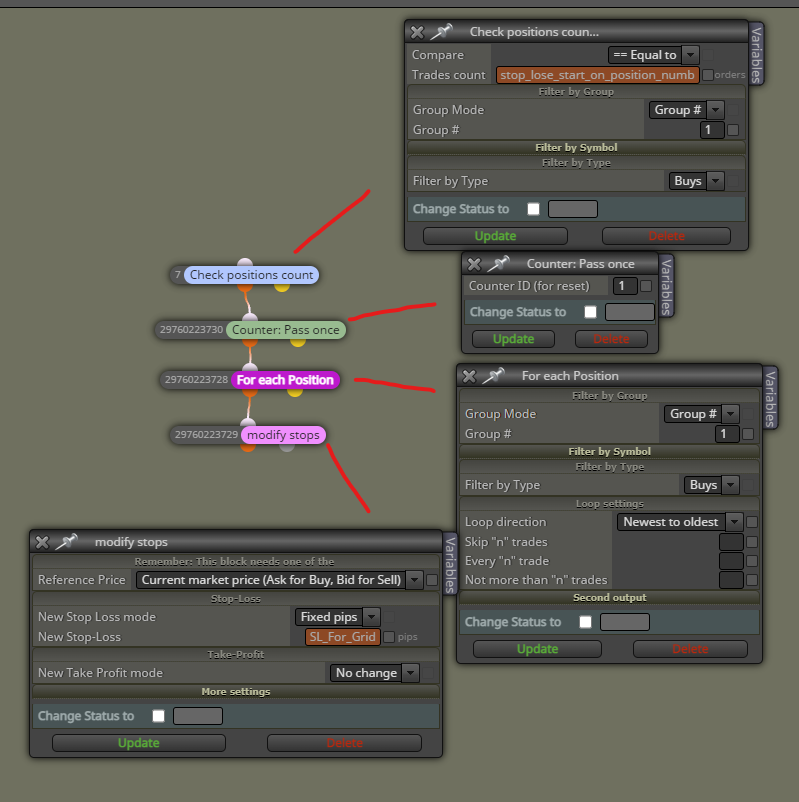
any block needs to be connected to at least on other block to work,
once per day will pass the "block activation" to the block next to it once per day ,
i would recommend you separate the trailing stop block like this ( [ If position ]=>[ Trailing Stop ] ) since you want the "trade" once per day not the "trailing stop"
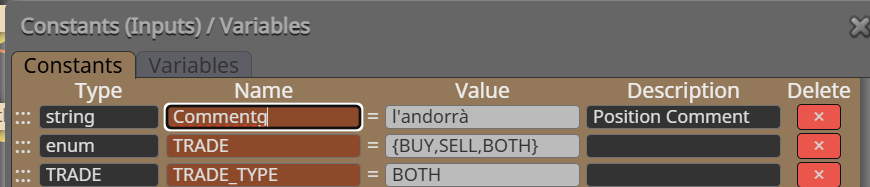
string should work ! , I have used it before and its worked fine with me
@jstap yes you are right, if you have a big project in FXDreema it will be annoyingly very slow in the back test, i save the project to mq5 file to copy the code to Claude 4.6 sonnet, but first you have to prepper the AI to get familiar with fxdreema MQL and the new MQL that is more efficient,
make it study the documents of MQL5 then give it the code.,
also you are right about the complicated projects, sometimes the simpler the projects is the better bot you will get.
lately i have been using Claude to translate my projects code (mq5) to the new MQL
Fxdreema uses old MetaQuotes Language which is not CPU and Memory efficient,
now MQL is updated its faster, very light and efficient than what fxdreema uses
Data Export Limitations
For example, exporting custom indicator data may require additional configuration beyond basic OHLC and volume data.
Use the "Write to File" Block
files should be saved to the MetaTrader Files folder (typically MQL5/Files/).
Step-by-Step Setup:-
-Add the "Write to File" Block into your event handler (e.g., OnInit, OnTick, or OnTimer)
-Set the filename (e.g., data.csv)
-Define Data to Export: Connect data blocks (variables, OHLC data, indicator values) to the 'Write to File' block
-Set Write Mode: Choose between REWRITE (overwrite) or APPEND (add to existing file).
string should work ! , I have used it before and its worked fine with me